



No one likes to see ugly error codes when they try watching Netflix after a long day at work… But what’s worse is that these error codes are vague. So the average person doesn’t even understand what caused the error code or what it means.
Many people face the Netflix error codes every day, which can show up due to a number of reasons. So in this guide, we will explain 6 Netflix error codes along with helpful ways to resolve the Netflix errors on your own.
1. Netflix Error 113
The 113 error code appears when the login info is incorrect. So, if you are entering an incorrect email or password, Netflix will throw up this mysterious error.
Here’s how to solve error 113:
Double check the information and ensure you are entering the correct email/password. And if you have forgotten the password, then use the “Reset” option.
Also, many people use a shared account they got from a friend or family member. So, another reason could be that they changed the password without informing you. The best way to fix it is to buy Netflix accounts cheap so you can avoid repeated login issues next time.
By having your own account, you no longer have to worry about someone changing the password. So, if you see error 113 and you have a borrowed account, then it is high time to get your own Netflix account.
- Netflix Error NSES-500
Imagine you were watching a really cool show and you got the NSES-500 error all of a sudden… Another scenario is that you got the NSES-500 error as soon as you launched the Netflix app.
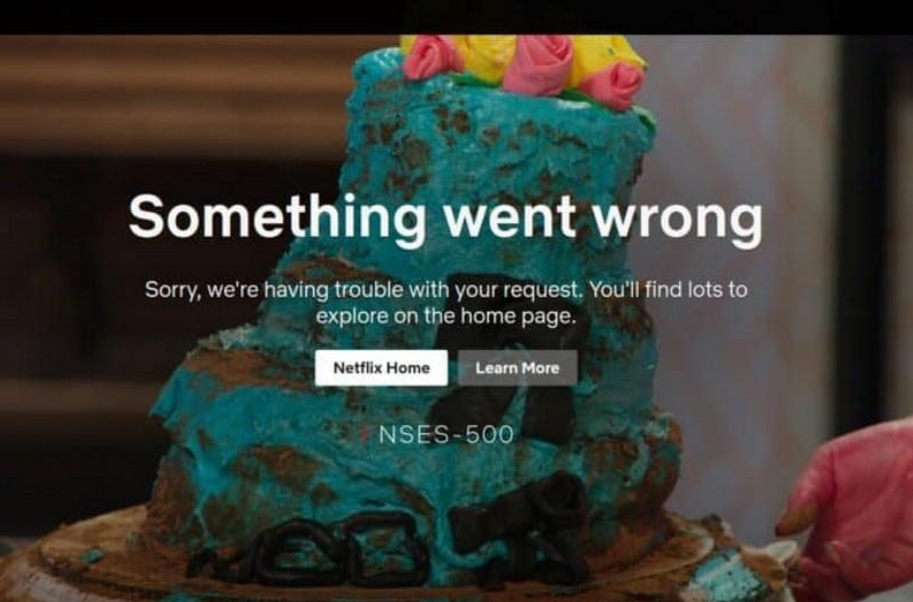
What it means? The Netflix servers are down or going through maintenance. Now, that’s one of the rare errors where there’s no issue on your end as it has to do with Netflix servers.
Here’s how to solve error NSES-500:
The error should disappear on its own if you restart the Netflix app. In rare cases, Netflix may need ten to fifteen minutes to fix the server problems.
You can also use the Downdetector service to find if other users are also affected by the outage. In addition, you can also use the service to know when the Netflix service is back to normal again.
3. Netflix Error 40103
This one shows up if you are using the old version of the Netflix app. Similarly, enabling a VPN can also make you see 40103 error on the app.
But why a VPN would stop you from accessing Netflix? Some VPN providers intentionally block Netflix to conserve bandwidth. On the contrary, Netflix also blocks some VPN providers from time to time to protect its network.
The Fix:
Update the app via the App Store and turn off the Virtual Private Network as it can also interfere with the Netflix app.
4. Netflix Error UI-800-3
The UI-800-3 error shows up due to network issue or when the information stored on your device is outdated.
The UI-800-3 can be fixed via these steps:
- Restart the smartphone via the power button. For a TV, you will need to unplug it from power for few minutes and then plug it back in.
- Open the Netflix app > Log out of your account.
- Log in to the Netflix app again.
Having trouble finding the Sign out option? Then simply uninstall and reinstall the app. Lastly, also restart the internet router or try switching to mobile data as network issues can also cause the UI-800-3 error.
5. Netflix Error E118
The cheapest Netflix plan comes with ads and the “E118” code means your device doesn’t support Netflix ads. The error code shows up if your TV model or your smartphone is old.
Now, let’s see how to get rid of the E118 code:
Go into your smartphone settings and check for updates. If it’s available, then update the OS as that can fix the E118 in most cases. Also, update the app as using an outdated version can also cause issues. And if you are watching on a PC/laptop, then update the web browser.
If the E118 is still not going away, then the last resort is to upgrade to a Netflix plan without ads.
6. Netflix Error TVQ-ST-122 and TVQ-ST-103
The error codes that start with the “TVQ” prefix appear due to network issues or faulty cookies. The good news? All the TVQ error codes can be fixed by doing these:
- Turn off the device & wait one to two minutes before turning it on again.
- Restart the internet router.
- Clear the cookies if you are watching Netflix on a browser. For TV or similar devices, visit netflix.com/clearcookies to get info on how to clear the cookies.
To clear the cookies on the Chrome browser, tap on the 3 dots > Delete Browsing data. Next, select a duration and then click on Delete from this device button.
Conclusion
There’s a lot that can go wrong and mess up your streaming experience. This includes network issues, faulty cookies, outdated apps, and so on.
The good news is that we have covered all the common Netflix errors along with detailed fixes. So, if you are getting a TVQ error or the infamous UI-800-3, just follow the steps we have shared to get rid of them!