

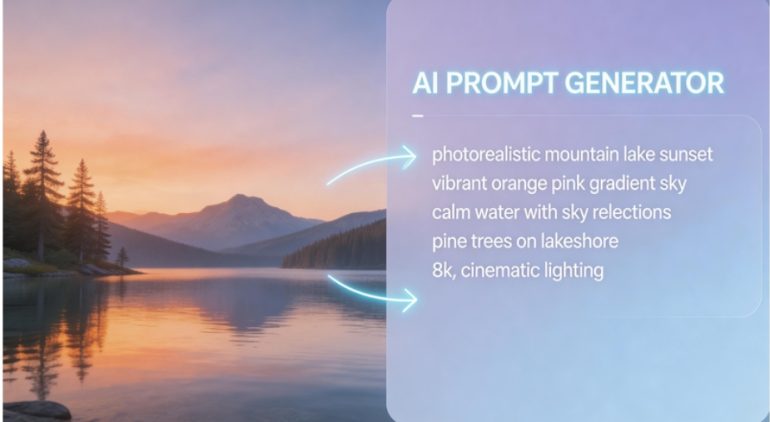
Have you ever stumbled upon an amazing AI-generated image and wondered exactly what prompt created it? Or perhaps you have a reference image but can’t quite figure out how to describe it in words for an AI image generator? You’re not alone. Converting images into effective prompts is one of the biggest challenges in AI art creation today.
That’s where image to prompt technology comes in. This powerful approach transforms any visual into descriptive text that AI tools can understand and use to generate new images. In this comprehensive guide, we’ll explore everything you need to know about converting images to prompts, with a special focus on Vheer’s free online image to prompt generator.
What Is an Image to Prompt Conversion?
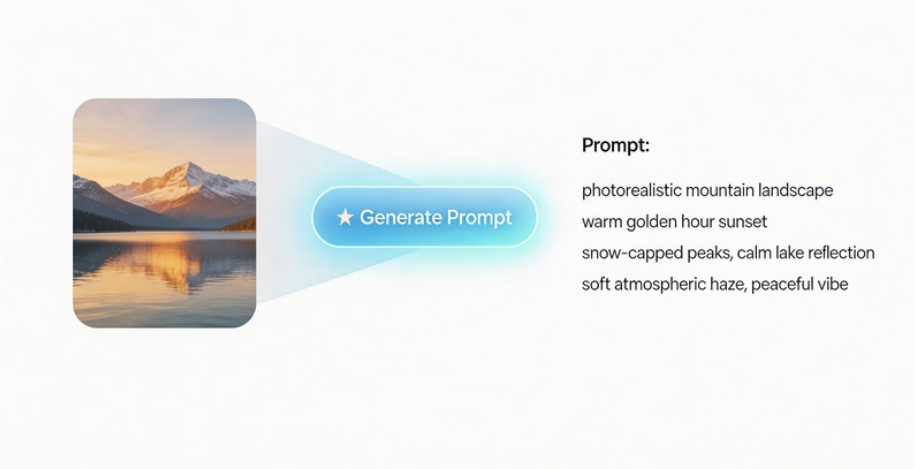
An image to prompt generator is an AI-powered tool that analyzes any uploaded image and automatically generates detailed text descriptions. These descriptions aren’t just captions—they’re structured prompts optimized for AI image generation tools like Midjourney, DALL·E, Stable Diffusion, and others.
Instead of spending hours trying to craft the perfect description from scratch, you simply upload an image that captures the style, mood, or composition you want, and let the AI do the heavy lifting. The result? A ready-to-use prompt that you can copy directly into your favorite AI image generator.
Why does this matter? Because great prompts are the foundation of great AI art. By starting from a visual reference rather than a blank text field, you can achieve more consistent, accurate, and creative results—whether you’re recreating a specific style, building on existing artwork, or learning how to write better prompts through example.
How Vheer’s Image to Prompt Generator Works
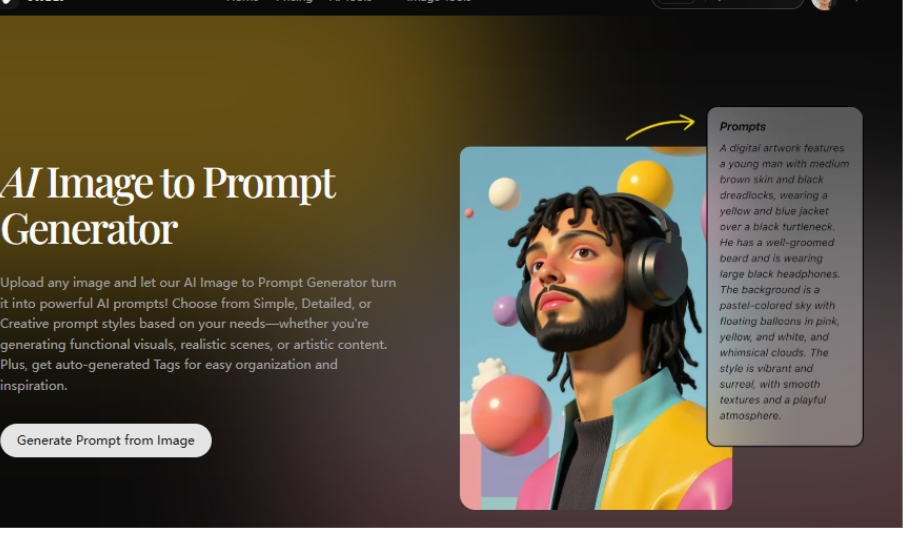
Vheer offers a powerful yet beginner-friendly image to prompt tool that makes this entire process effortless. Here’s what makes it stand out from other AI prompt extractors:
Three Prompt Styles for Every Creative Need
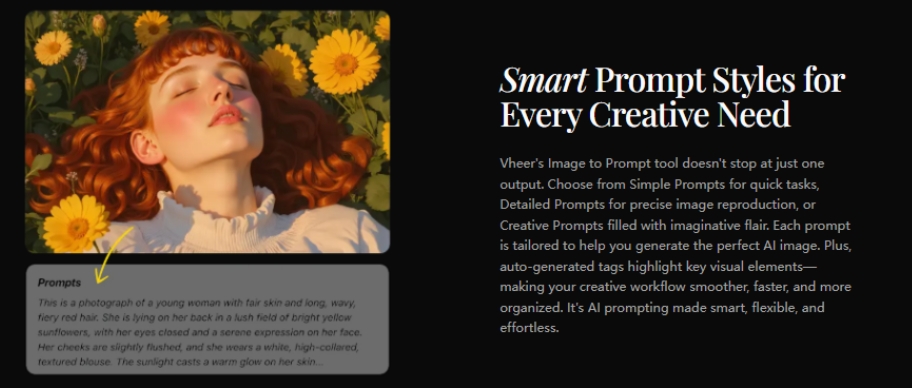
Unlike many tools that only offer one type of output, Vheer provides three distinct prompt styles:
– Simple Prompt: Clean, straightforward descriptions perfect for quick generations or when you want a basic representation of your image without overwhelming detail. Ideal for beginners and rapid testing.
– Detailed Prompt: Rich, technical descriptions that capture fine elements like lighting, textures, composition, and specific features. Best for realistic reproductions and professional work where accuracy matters.
– Creative Prompt: Expressive, imaginative descriptions infused with artistic language. Perfect for storytelling, fantasy concepts, and when you want to add creative flair beyond literal description.
Auto-Generated Tags
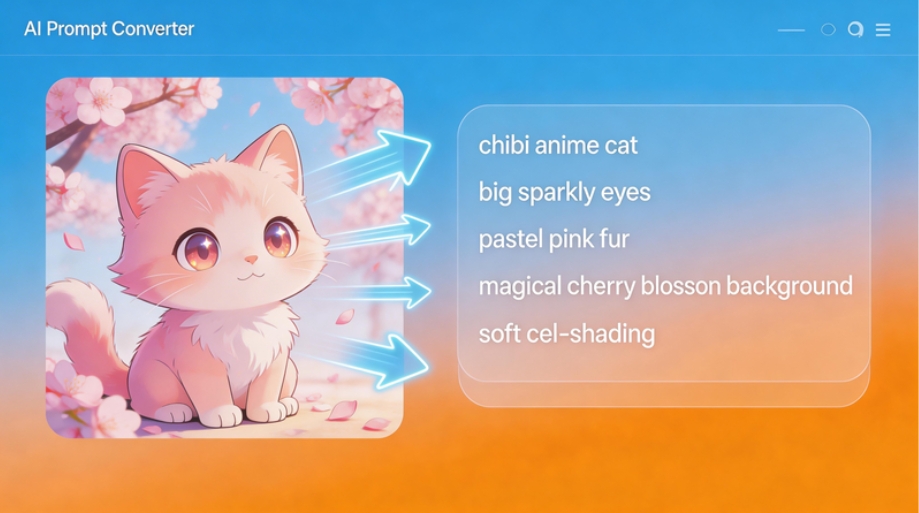
Beyond prompts, Vheer also automatically extracts relevant tags from your image. These keywords highlight key visual elements—subjects, styles, colors, moods—that you can use to guide AI generation, organize your creative projects, or enhance searchability. It’s like having an AI image describer that provides multiple output formats in one pass.
Key Features That Make Vheer Different
- Completely Free: No subscriptions, no hidden costs, no limits on how many prompts you can generate.
- No Login Required: Jump straight into creating—no account setup or personal information needed.
- No Watermarks: Your prompts are yours to use however you want, with no branding attached.
- Browser-Based Processing: All analysis happens locally in your browser, ensuring your images remain private and secure. Vheer doesn’t store or share your uploads.
- Lightning Fast: Get results in seconds, not minutes. Vheer’s optimized AI delivers accurate prompts without the wait.
Step-by-Step Tutorial: How to Convert Image to Prompt with Vheer
Ready to start turning your images into prompts? Here’s a complete walkthrough:
Step 1: Access the Tool
Visit Vheer’s Image to Prompt Generator. The interface is clean and intuitive—no learning curve required.
Step 2: Upload Your Image
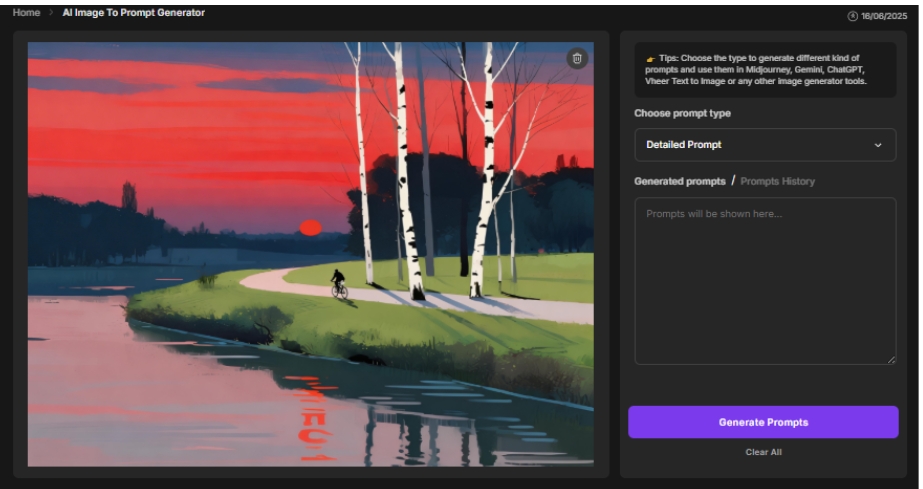
You have three convenient options:
– Click to Upload: Select “Upload your image” and choose a file from your device (supports all major image formats including JPG, PNG, WebP)
– Drag and Drop: Simply drag your image directly into the upload area for the fastest workflow
– Paste URL: Copy an image URL from the web and paste it into the URL box
Once uploaded, your image displays instantly on the screen, ready for analysis.
Step 3: Choose Your Prompt Style
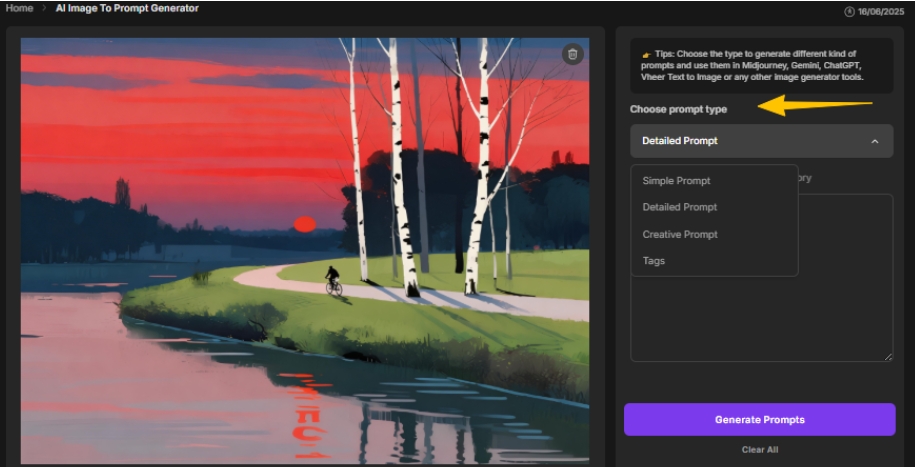
Select from Simple, Detailed, or Creative prompts based on your goal:
– Choose Simple for quick tests or when you want minimal description
– Choose Detailed when accuracy and fine details matter
– Choose Creative for artistic projects and stylized outputs
You can always regenerate different styles later to compare results.
Step 4: Generate Your Prompt
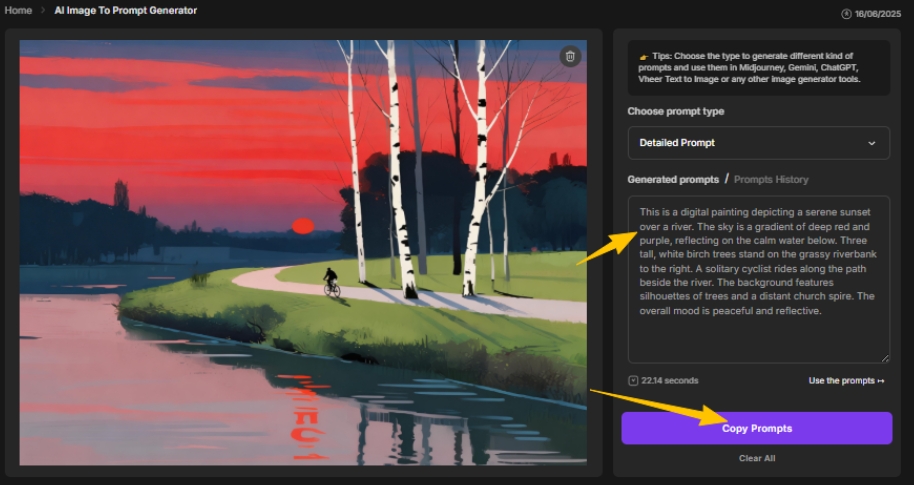
Click “Generate Prompts” and watch Vheer’s AI analyze your image. Within seconds, you’ll receive:
- – Your chosen prompt style
- – Auto-generated tags highlighting key visual elements
- – Option to copy everything with one click
Step 5: Use Your Prompt
You have two options:
– Copy Prompts: Copy the text directly and paste it into any AI image generator (Midjourney, DALL·E, Stable Diffusion, etc.)
– Use the Prompt: Click to open Vheer’s built-in Text-to-Image Generator, where you can instantly create new images based on your extracted prompt—no copy-paste needed
Real Example: From Image to Three Different Prompts
Let’s see how one image can generate three completely different prompt styles.
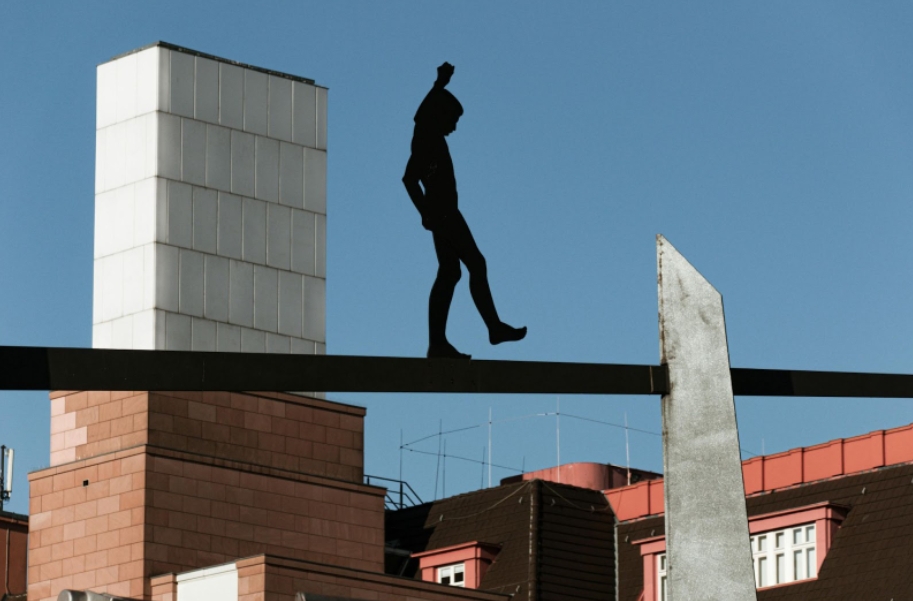
Simple Prompt Output:
“A solitary figure in silhouette walks on a high wire above a modern cityscape with brick and concrete buildings, under a clear blue sky.”
Detailed Prompt Output:
“This photograph captures a silhouetted figure mid-stride on a high-rise walkway against a clear blue sky. The person, dressed in dark, form-fitting clothing, appears to be walking along a narrow ledge. The background features modern, angular buildings with a mix of brick and concrete textures. Notable structures include a tall, rectangular white building and a prominent, sharp-edged concrete pillar. The image exudes a sense of urban exploration and high-rise architecture.”
Creative Prompt Output:
“A lone silhouette of a person walking on a high wire straddles the urban landscape, framed against a clear blue sky. Below, red-brick and concrete buildings contrast with a towering white cube structure, creating a modern, industrial backdrop. The high wire is held by two tall, angular poles, adding a sense of tension and balance to the scene. The overall composition evokes themes of urban exploration and the delicate dance between human presence and architecture.”
See the difference? Each style serves different creative purposes—and you get all three from a single upload.
When to Use Each Prompt Style
Choosing the right prompt style depends on your goal:
Use Simple Prompts When:
- – You’re new to AI image generation and want to experiment
- – You need quick results without over-complicating things
- – You’re generating functional images (icons, simple illustrations, mockups)
Use Detailed Prompts When:
- – You need to recreate a specific image with high accuracy
- – You’re working on professional or commercial projects where precision matters
- – You want to capture technical aspects like lighting, textures, and composition
Use Creative Prompts When:
- – You’re creating storytelling content, fantasy art, or stylized visuals
- – You want to add mood, emotion, and atmosphere beyond literal description
- – You’re exploring variations and want the AI to take creative liberties
Use Auto-Generated Tags When:
- – You’re building prompt libraries and need organizational keywords
- – You want to understand what visual elements the AI detected in your image
- – You’re combining tags with other prompts for hybrid approaches
Why Image to Prompt Beats Writing from Scratch
Starting with a visual reference instead of a blank text field offers several advantages:
Faster Workflow: Skip the trial-and-error phase of prompt writing. Upload once, get multiple usable prompts immediately.
Learn by Example: See how professional AI artists structure their prompts by analyzing existing images. Over time, you’ll internalize patterns and improve your own prompt-writing skills.
Consistency: When working on series or maintaining brand aesthetics, image-to-prompt ensures visual consistency across multiple generations.
After generating prompts from your reference images, some creators take the workflow even further by experimenting with different visual styles. For example, you can use an image-to-pixel-art tool to transform your AI-generated results into retro-style visuals.
This approach is especially useful if you’re building game assets, social media content, or nostalgic designs.
Common Use Cases for Image to Prompt Tools
Who benefits from AI prompt extraction? Almost anyone working with AI image generation:
AI Artists: Maintain consistent styles across projects, reverse-engineer techniques, and iterate faster
Content Creators: Quickly turn reference images into social media graphics, thumbnails, or marketing visuals
Designers: Extract style elements from inspiration images for client work or mood boards
Prompt Engineers: Analyze successful prompts to build libraries and identify winning patterns
Beginners: Learn prompt structure by seeing how images translate to text
Marketers: Generate consistent brand visuals by analyzing existing assets
Tips for Best Results
To get the most out of your image to prompt generator:
Use High-Quality Reference Images: Clear, well-lit images with good contrast yield better prompt analysis
Experiment with All Three Styles: Generate Simple, Detailed, and Creative prompts from the same image—you might be surprised which works best for your goal
Combine with Manual Editing: Use the generated prompt as a starting point, then tweak keywords, add specific details, or adjust the tone
Build a Prompt Library: Save successful prompts along with their reference images for future inspiration and consistency
Test Across Different AI Tools: A prompt that works well in Midjourney might need slight adjustments for DALL·E or Stable Diffusion—experiment to find what works best
Use Tags for Hybrid Approaches: Combine auto-generated tags with manual prompt writing for ultra-specific control
Conclusion: Transform Your Creative Workflow
Converting images to prompts isn’t just a convenience—it’s a fundamental shift in how we approach AI image generation. By starting with visuals instead of blank text fields, you can achieve more accurate results, work faster, and learn what makes great prompts work.
Vheer’s free image to prompt generator makes this process accessible to everyone, from complete beginners to experienced prompt engineers. With three prompt styles, auto-generated tags, zero cost, and complete privacy, there’s no reason not to try it.