



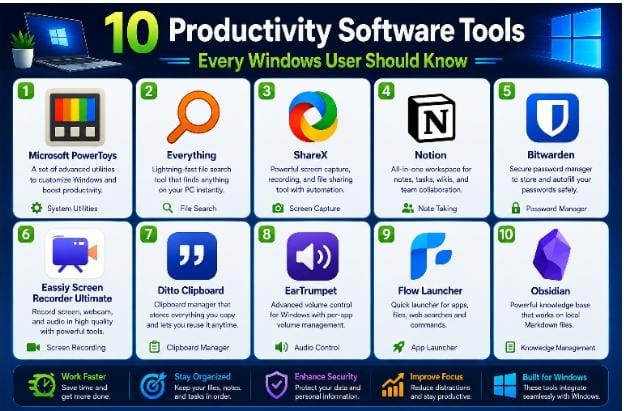
Windows has been the top desktop OS for ages, and it’s not hard to see why. It just works with pretty much any software, you can tweak it a lot, and there’s this huge selection of apps to make working easier. Doesn’t matter if you’re a student with papers due, a pro juggling projects, a coder, or making videos, Windows lets you set up your work how you like it.
The real trick isn’t finding productivity apps, though-it’s figuring out which ones to use together. Different people have different tasks daily. Maybe you need to find files faster, or take better notes, manage passwords, record your screen, or automate stuff. This guide skips just listing apps and digs into real-life workflows instead. Each suggestion tackles a specific productivity hurdle and plays nice with others for a smoother Windows setup.
Why Productivity Software Matters More Than Ever
Work is just way more intense now. You really need productivity software these days to stay straight and don’t fall behind.
- Information overload–Emails, docs, tabs, pings, messages everywhere. We’re drowning. If you don’t have the right way to handle it, good info gets buried, and that just causes delays and makes people mad.
- Hybrid work–Remote and hybrid work is the norm for lots of jobs. Employees can switch between home and office environments, using different devices and platforms. Productivity tools help keep things smooth no matter where you are.
- AI-assisted workflows–AI speeds up writing, research, coding, and thinking generally. But AI really shines when it’s hooked up to apps that can organize, grab, and manage all that info well.
- Time management–Little things take time. Saving time on chores means more hours monthly for work. Good software cuts out noise and makes routine stuff flow better.
The 10 Essential Productivity Tools
1. Microsoft PowerToys
Microsoft PowerToys is a collection of utilities that give Windows some neat extras, like better window snapping, handy shortcuts, and quick file previews. It also includes text extraction and image resizing.
Best For
Power users who want to customize Windows and eliminate repetitive tasks.
Pros
- Free and officially supported by Microsoft
- Regular feature updates
- Improves multitasking significantly
- Includes useful utilities like FancyZones and PowerRename
Limitations
- Some tools require initial configuration
- Beginners may not use every feature
Pricing
Free
Why We Recommend It
PowerToys transforms Windows into a much more efficient operating system without installing dozens of separate utilities.
2. Everything
Everything indexes your computer for near-instant file searches, way faster than Windows Search.
Best For
Professionals managing thousands of files and folders.
Pros
- Lightning-fast searches
- Minimal resource usage
- Supports advanced search filters
- Free to use
Limitations
- Primarily searches filenames rather than document contents
- Interface is basic
Pricing
Free
Why We Recommend It
If you frequently waste time searching for documents, Everything can save countless hours over the course of a year.
3. ShareX
ShareX is an advanced screenshot and screen capture application with annotation, OCR, GIF creation, and workflow automation.
Best For
Technical writers, support teams, developers, and educators.
Pros
- Powerful screenshot editing
- Extensive automation options
- Open-source
- Supports multiple upload destinations
Limitations
- Interface can be overwhelming initially
- Screen recording options are more technical
Pricing
Free
Why We Recommend It
ShareX goes far beyond basic screenshots and is one of the most capable free capture tools available for Windows.
4. Notion
Notion combines notes, task management, project planning, databases, documentation, and collaboration into one workspace.
Best For
Students, teams, freelancers, and project managers.
Pros
- Highly customizable
- Excellent collaboration features
- AI-assisted writing available
- Cross-platform synchronization
Limitations
- Learning curve for advanced databases
- Offline functionality is limited
Pricing
Free plan available; paid plans start at approximately $10/user/month.
Why We Recommend It
Notion adapts to almost any workflow, making it one of the most versatile productivity platforms available.
5. Bitwarden
Bitwarden securely stores passwords, generates strong credentials, and syncs login information across all your devices.
Best For
Anyone who values online security.
Pros
- Strong encryption
- Cross-platform compatibility
- Browser extensions
- Affordable premium features
Limitations
- Interface is functional rather than modern
- Some advanced features require Premium
Pricing
Free plan available; Premium starts at $10/year.
Why We Recommend It
Strong password management improves both security and convenience while eliminating the need to remember dozens of passwords.
6. Eassiy Screen Recorder Ultimate
Eassiy Screen Recorder Ultimate is a comprehensive screen recording solution designed for professionals, educators, gamers, customer support teams, and content creators. It enables users to capture their entire screen, selected windows, Android & iPhone screen, webcams, system audio, microphones, and gameplay with high-quality output. Beyond recording, it also includes screenshot tools, annotation features, scheduled recording, and basic editing capabilities, making it a versatile all-in-one recording solution.
Beyond recording, Eassiy Screen Recorder Ultimate offers a versatile set of built-in media management tools that enhance productivity. Whether you need to trim lengthy videos, compress large files, convert between popular formats, merge multiple clips, edit media metadata, extract audio from videos, or boost sound quality, everything is available in one place. This all-in-one toolkit helps you save time, simplify post-recording tasks, and eliminate the need for multiple third-party applications.
Best For
- Tutorial creators
- Online educators
- Technical support teams
- Business presentations
- YouTubers
- Software demonstrations
- Meeting recording
Pros
- High-quality screen, webcam, and audio recording
- Supports multiple recording modes
- Easy-to-use interface suitable for beginners
- Built-in editing and annotation features
- Scheduled recording for automated capture
- Records meetings, tutorials, presentations, and gameplay
- Video Trimmer/ Video Compressor
- Video & Audio Converter
- Video Merger
- Media Metadata Editor
- Sound Extractor and Sound Booster.
Limitations
- Some advanced features are available only in the paid version
- Video editing capabilities are lighter than dedicated editing software
Pricing
Free trial available; an annual plan for $39.99.
Why We Recommend It
Recording has become an essential part of modern workflows. Whether you’re documenting software bugs, creating tutorials, recording online meetings, producing training videos, or capturing presentations, Eassiy Screen Recorder Ultimate offers a balanced combination of simplicity, recording quality, and practical features that make daily work significantly easier.
7. Ditto Clipboard
Ditto extends the Windows clipboard by storing clipboard history, allowing users to access previously copied text, images, and links.
Best For
Writers, programmers, researchers, and office workers.
Pros
- Unlimited clipboard history
- Search functionality
- Lightweight
- Free
- Limitations
- Requires background operation
- Interface is functional rather than polished
Pricing
Free
Why We Recommend It
Instead of copying the same information repeatedly, Ditto allows instant access to previous clipboard entries, saving time throughout the day.
8. EarTrumpet
EarTrumpet provides advanced audio controls, allowing users to adjust volume separately for individual applications.
Best For
Users who multitask with multiple media and communication applications.
Pros
- Better audio management
- Seamless Windows integration
- Lightweight
- Free
Limitations
- Limited to audio management
- Mostly useful for users running several applications simultaneously
Pricing
Free
Why We Recommend It
Managing application-specific audio levels becomes effortless, especially during meetings or while consuming media.
9. Flow Launcher
Flow Launcher is a keyboard-driven application launcher that quickly opens programs, performs calculations, searches files, and executes commands.
Best For
Keyboard-focused users who prefer speed over navigating menus.
Pros
- Extremely fast
- Plugin support
- Open-source
- Lightweight
Limitations
- Requires memorizing shortcuts
- Plugin setup takes some time
Pricing
Free
Why We Recommend It
Flow Launcher significantly reduces the number of clicks required to perform everyday actions.
10. Obsidian
Obsidian is a Markdown-based knowledge management application that links notes together to build a personal knowledge base.
Best For
Researchers, writers, developers, students, and lifelong learners.
Pros
- Local-first storage
- Powerful linking system
- Extensive plugin ecosystem
- Highly customizable
Limitations
- Learning curve for advanced features
- Sync requires a separate solution or paid service
Pricing
Free for personal use.
Why We Recommend It
Obsidian excels at organizing long-term knowledge, making it easy to connect ideas and retrieve information when needed.
How to Choose Productivity Software Based on Your Workflow
The best productivity setup depends on the type of work you do rather than the number of applications you install.
Students
Notion might be useful for student coursework. For research notes, Obsidian is pretty good. Need help with accounts? Bitwarden. And for finding study stuff fast, Everything works.Students can use Eassiy Screen Recorder Ultimate for recording presentations and other stuff.
Office Workers
Office folks can use Microsoft PowerToys to multitask better. Ditto Clipboard helps with copying things over and over. Need to control meeting sound? EarTrumpet. Eassiy Screen Recorder Ultimate is good for recording presentations or those virtual meetings.
Developers
People use Flow Launcher to quickly open apps. Everything is for project searches, ShareX for bugs, and Obsidian handles their tech notes.
Designers
Designers grab ShareX for design feedback screenshots. Account security is Bitwarden’s job. They demo and present using Eassiy Screen Recorder Ultimate.
Content Creators
Creators benefit from combining Eassiy Screen Recorder Ultimate for video capture, Notion for content planning, Obsidian for idea management, and ShareX for creating quick tutorials and visual documentation.Everything indexes your computer and provides near-instant file searches, making it dramatically faster than Windows Search
Productivity Stack Example
Instead of relying on one application, combine multiple tools into a seamless workflow:
Morning Planning
- Review today’s schedule and priorities in Notion.
Research
- Use Everything to locate documents instantly and Flow Launcher to quickly open applications or search files.
Recording
- Capture meetings, tutorials, presentations, or demonstrations using Eassiy Screen Recorder Ultimate, while ShareX handles quick screenshots and annotations.
Knowledge Management
- Store research findings, meeting notes, and long-term ideas in Obsidian, and use Ditto Clipboard to keep frequently copied content readily available.
Backup and Security
- Protect your accounts with Bitwarden, and use Microsoft PowerToys alongside EarTrumpet to optimize multitasking and system controls throughout the day.
This combination creates a balanced productivity ecosystem where each application complements the others instead of overlapping unnecessarily.
Frequently Asked Questions
What is the best productivity software?
Productivity tools are not universal, I keep thinking. For example, Notion’s good for planning, and Everything helps find files fast. If you’re making tutorials, Eassiy Screen Recorder Ultimate is a neat pick. It records your screen, webcam, and audio, then you edit it there. Pretty handy.
Are free productivity tools enough?
Free tools do a lot for everyday stuff on Windows. But paid software can be worth it for fancier needs, like if you record things a lot. Eassiy Screen Recorder Ultimate, for instance, has different ways to record, can record on a schedule, and has editing built-in. Those kinds of things are usually missing from free screen recorders.
Which productivity software comes pre-installed on Windows?
Windows comes with several built-in productivity tools, including Snipping Tool, Notepad, Calculator, Sticky Notes, Voice Recorder, and Microsoft Photos. These applications are useful for basic tasks, but they have limited functionality. For more advanced screen recording, such as capturing webinars, online meetings, gameplay, tutorials, or presentations with system audio and webcam support, a dedicated solution like Eassiy Screen Recorder Ultimate offers a much more comprehensive feature set.