

Highlight videos work because they respect attention. They do not ask viewers to sit through every second of an event, product demo, trip, game, or celebration. They package the best part first, make the motion easy to follow, and give the viewer one clear reason to keep watching.
That is why AI highlight video maker tools are becoming useful for creators, marketers, and small teams. Instead of building every clip manually, you can start with a prompt, upload a photo, reuse existing footage, or polish a short video for social platforms.
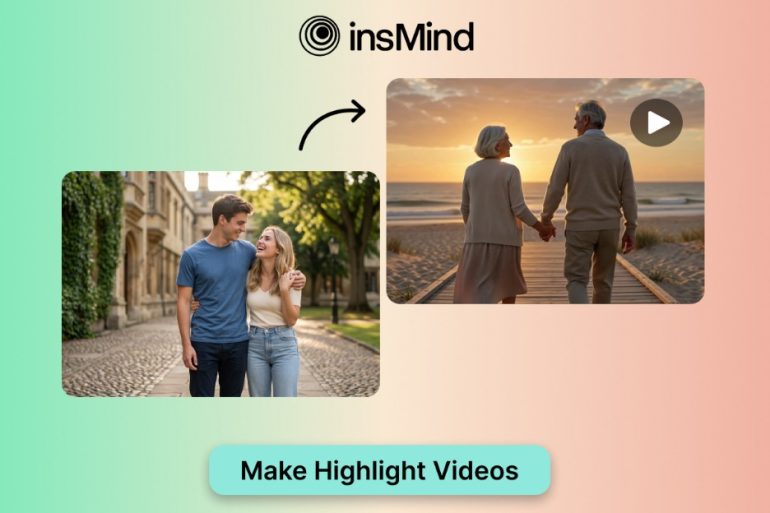
For creators who want to move quickly, insMind offers an AI highlight video maker that can turn an idea or visual reference into a short highlight video without a complicated editing timeline.
What Makes a Strong AI Highlight Video?
A strong highlight video is not just a short video. It has a focal point. It shows the moment that matters, removes the extra setup, and gives the viewer enough context to understand the story in seconds.
- One main subject or moment that stays central.
- Visible motion in the first second.
- A camera move that supports the emotion or reveal.
- Clear framing for Reels, TikTok, Shorts, ads, or website use.
- A finished ending that feels intentional rather than abruptly cut.
This is where AI tools can help. They can reduce the time between idea and draft, especially when the goal is to test several versions before choosing the best clip.
Top AI Highlight Video Maker Tools to Consider
Different tools solve different highlight problems. Some are best for generating new clips from prompts or images. Others are better for finding clips inside long recordings or polishing footage that already exists.
| Tool | Best Fit | How It Creates Highlights |
| insMind | Prompt and image-based highlight clips | Create social-ready videos from prompts or images. |
| OpusClip | Long-form video repurposing | Find shareable clips inside podcasts, webinars, or interviews. |
| CapCut | Social editing and manual polish | Add templates, captions, transitions, and mobile-first effects. |
| VEED | Browser-based editing | Trim, subtitle, brand, and export short videos online. |
insMind: Best for Prompt and Photo-Based Highlights
insMind is a practical option when your highlight begins with an idea, a photo, or a visual concept. You can describe a product moment, event recap, sports celebration, wedding memory, travel scene, or birthday clip, then generate a short AI video from that direction.
If the starting asset is a still image, image to video can help the clip feel more alive while keeping the main subject recognizable.
- Good for product, travel, event, wedding, and memory highlight concepts.
- Useful when you want to generate variations from prompts or images.
- Simple enough for creators who do not want a full editing timeline.
OpusClip, CapCut, and VEED: Where They Fit
OpusClip is helpful when you already have long videos and need short moments pulled out for social platforms. CapCut is stronger when you want familiar social editing controls, templates, effects, and captions. VEED works well for browser-based trimming, subtitling, and brand polish.
A practical setup may combine tools: generate a clip with one platform, then refine captions, timing, and brand details in another. The right choice depends less on the tool name and more on your source material.
How to Create a Highlight Video with insMind
The original creation process has four steps, and the same structure works well for guest-post readers: begin with a prompt or image, choose video settings, generate the clip, then download and share the result.
Step 1: Input Your Prompt or Upload an Image
Start with the clearest version of the highlight idea. You can write a prompt if the scene exists only in your head, or upload an image when you want the video to preserve a specific person, product, place, or moment.
A useful prompt should name the subject, describe the highlight moment, and include the visual mood. For example: a cinematic life-journey montage, a product close-up reveal, a sports celebration, or a warm event recap.
Step 2: Select the AI Model, Ratio, and Duration
Next, choose the video model, aspect ratio, and duration. Vertical works best for TikTok, Instagram Reels, and YouTube Shorts. Square or horizontal formats may fit product pages, website banners, or broader campaign assets.
Keep the clip short if the highlight has one clear payoff. A longer duration can work when the idea needs a small story arc, but a highlight should still feel focused.
Step 3: Generate Your AI Video
Once the input and settings are ready, generate the clip. If the first result feels close but not quite right, adjust the prompt instead of changing everything at once. Add a clearer camera move, simplify the scene, or make the emotion more specific.
For very light motion, animate a photo into a video may be enough; for a full scene concept, a more detailed prompt usually works better.
Step 4: Download and Share the Result
Preview the finished video before downloading. Check the first second, the subject, the motion, and the final frame. If the result is strong, download it and use it for social posts, product teasers, event recaps, sports highlights, travel clips, or personal memory videos.
Prompt Examples for Better Highlight Clips
Prompt quality matters because highlights need intent. Instead of saying only what appears in the image, explain how the moment should move and why it matters.
| Highlight Type | Reusable Prompt |
| Product moment | Create a 5-second product highlight from this image. Start with a close-up detail shot, use a smooth camera push-in, add clean studio lighting, subtle product rotation, crisp shadows, and a final frame with space for a short product callout. |
| Event recap | Create a cinematic event highlight with warm lighting, quick emotional moments, natural crowd movement, a smooth tracking camera, and a celebratory final reveal. Make it polished, energetic, and ready for social media. |
| Sports clip | Create a fast-paced sports highlight with dynamic camera movement, dramatic slow motion, strong contrast, crowd energy, and one clear winning moment. Keep the action centered and easy to read on mobile. |
| Travel memory | Create a cinematic travel highlight from this photo. Use a smooth drone-style orbit, natural background motion, bright daylight, gentle wind, and a clear destination reveal for a short travel Reel. |
When you start without a photo, generate videos from text help turn a written concept into a visual draft before you decide whether it is worth polishing.
Tips for Choosing the Right Highlight Tool
- Use a prompt or image-based generator when you need to create a new visual clip quickly.
- Use a clipping tool when you already have long videos and need the best moments extracted.
- Use a video editor when your main work is captions, trims, transitions, or brand polish.
- Use a generative video platform when you need a more experimental or cinematic visual scene.
The best AI highlight maker is not always the most advanced one. It is the tool that fits your starting point and gets you to a usable clip with the least friction.
FAQs About AI Highlight Video Makers
Can I make highlight videos from photos?
Yes. A clear photo can become the starting point for a moving highlight clip, especially when the subject is recognizable and the prompt gives the AI a clear motion direction.
Are AI highlight videos useful for social media?
Yes. Highlight clips are a natural fit for Reels, TikTok, Shorts, ads, and campaign posts because they turn one key moment into a quick, watchable video.
What makes a highlight video look professional?
A professional highlight has one clear focus, readable movement, clean pacing, and a final frame that feels complete. Avoid packing too many ideas into one short clip.
Do I still need editing after AI generation?
Sometimes. AI can create the core clip quickly, but captions, timing, music, branding, or platform-specific formatting may still need a quick polish before posting.
Create Highlight Videos Faster
Highlight videos are about selection, not length. If you know the moment you want to show, AI can help you move from a rough idea to a shareable clip much faster.
Start with one strong visual, describe the motion clearly, generate a few variations, and keep the version that makes the highlight easy to understand in the first second.