



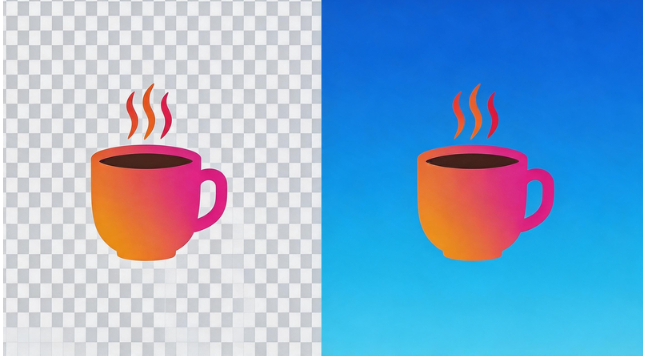
Transparent backgrounds transform logos from static graphics into versatile design elements. Whether you’re placing a logo on websites, overlaying it on photos, incorporating it into business cards, or using it in video productions, a clean transparent background ensures professional integration across all materials. Yet creating these transparent cutouts traditionally required expensive software and tedious manual work—tracing logo outlines pixel by pixel or struggling with complex selection tools in Photoshop.
AI-powered image background removal has eliminated this bottleneck entirely. Modern tools detect logo shapes, separate them from background colors, and deliver clean transparent PNGs in seconds—regardless of whether you’re working with simple text-based logos, intricate icons, or complex graphic designs with multiple elements.

Why Transparent Backgrounds Matter for Logos
Versatility Across Applications: A logo with a transparent background integrates seamlessly into any design or context. Solid background colors restrict where and how you can use your logo—white backgrounds fail on dark websites, colored backgrounds clash with contrasting materials, and mismatched backgrounds create visual noise. Transparent backgrounds eliminate these constraints entirely.
Professional Presentation: Transparent cutouts look intentional and polished. Solid colored backgrounds on logos suggest amateur design or stock imagery that wasn’t properly adapted. Clients, customers, and audiences immediately recognize the difference between a professional logo cleanly integrated into materials versus one sitting awkwardly on a contrasting background box.
Consistent Branding: Brands appear across websites, social media, print materials, merchandise, and countless other contexts. Transparent backgrounds ensure your logo displays consistently regardless of where it appears. This visual consistency builds brand recognition and professionalism.
Design Flexibility: Designers can composite logos into advertisements, overlay them on photographs, or incorporate them into larger graphics without wrestling with background removal. Transparent backgrounds make logos usable assets rather than static images requiring rework.

How to Create Transparent Logo Backgrounds with Vheer
Vheer’s AI Background Remover handles logo background removal with particular effectiveness. The tool detects logo shapes, preserves fine details, and delivers clean transparent PNGs ready for immediate use across all your branding materials.
Step 1: Go to Vheer’s Background Remover
Open your web browser and navigate to Vheer’s homepage. From the navigation menu, select Background Remover under the Image Tools section. The tool loads directly in your browser with no installation required and no account signup necessary.
Step 2: Upload Your Logo Image
Click the Upload your images button to add your logo. Vheer accepts JPEG, PNG, or WebP formats, covering the most common logo file types. For best results, upload the highest resolution version of your logo available.
Step 3: Remove the Background
Click the Remove Background button to initiate AI processing. The tool analyzes your logo, identifies the graphic elements, and removes the background color within seconds. The result displays as your logo isolated against a transparent checkerboard pattern.
Step 4: Download Your Transparent Logo
Download the transparent PNG directly. This file maintains the transparent background, allowing you to place your logo on any background color, photograph, or design element without visible outlines or boxes.

Preparing Logos for Best AI Results
Use High-Resolution Images: Higher resolution provides more pixel information for the AI to analyze, resulting in cleaner edge detection. If you only have a low-resolution version or a pixel art style image, consider enlarging it before background removal rather than processing at small sizes.
Ensure Good Contrast: Logos with clear separation between design elements and background colors process most accurately. If your logo uses similar colors for both design and background, the AI may struggle to distinguish where the design ends and background begins.
Avoid Compression Artifacts: Heavily compressed JPEG images with visible artifacts around edges can confuse AI detection. Use the cleanest version of your logo available for best results.
Consider Design Complexity: Extremely intricate logos with fine details, gradients within the design itself, or many small separate elements may occasionally require manual refinement after AI processing. Simple and moderately complex logos typically produce perfect results automatically.
Working With Your Transparent Logo

File Formats: Transparent PNG is the standard format for logos with transparent backgrounds. This format preserves transparency while maintaining quality. Avoid converting to JPEG, as this format doesn’t support transparency and will add a solid background.
Background Color Considerations: Once your logo has a transparent background, you can place it on any colored background. For websites, ensure sufficient contrast between logo elements and the background color where you’ll place it.
Size Variations: Create multiple size versions of your transparent logo for different uses—large versions for print and headers, medium for documents and presentations, small for icons and avatars. Background removal only needs to happen once; resize the transparent PNG for each use.
Vector vs. Raster: AI background removal works on raster images (pixel-based formats like JPEG and PNG). For logos that need to scale infinitely without quality loss, consider converting your transparent PNG to vector format (SVG) using vectorization software or online converters after background removal.
Common Logo Background Challenges
Gradients Within the Design: Some logos incorporate gradients as part of the actual design rather than just the background. AI tools may occasionally interpret design gradients as background elements to be removed. For these logos, preview results carefully and use manual refinement tools if available.
Internal Negative Space: Logos with text or design elements that have holes or negative space can confuse automated removal if the background color shows through these spaces. The best AI tools distinguish between external background and internal design elements.
Similar Colors: Logos using very similar colors for design elements and background create detection challenges. The AI may struggle to identify where the design begins and ends. Increasing contrast before processing or using manual refinement helps address this.
Multiple Connected Elements: Logos consisting of several separate but related elements (text plus icon plus graphic shapes) can sometimes be processed as multiple separate objects rather than a unified logo. The best tools maintain spatial relationships between all elements.
Applications for Transparent Logos
Website Design: Place logos directly in headers, footers, and sidebars without background conflicts. Transparent logos integrate cleanly into any website color scheme.
Social Media: Use transparent logos as profile pictures, cover photo overlays, or post graphics without white or colored boxes creating visual awkwardness.
Print Materials: Incorporate logos into business cards, brochures, flyers, and any print materials without worrying about background colors clashing with paper or design colors.
Video Production: Overlay transparent logos on video content for branding, intros, outros, or watermarks without visible background boxes.
Product Photography: Add logos to product images for watermarking or branding purposes without obscuring products with background rectangles.
Merchandise: Prepare logos for t-shirts, mugs, hats, and other merchandise by isolating the design from backgrounds that wouldn’t transfer well to printed products.
Troubleshooting Logo Background Removal
Edges Look Rough or Jagged: This typically results from low-resolution original images. Use the highest resolution version available, or consider manually smoothing edges in design software after AI processing.
Parts of the Logo Are Missing: Occasionally AI may interpret small design elements as background and remove them. Most tools allow you to restore these elements manually or adjust detection sensitivity.
Background Not Fully Removed: Some tools leave colored pixels around logo edges, especially with original images that had anti-aliasing or soft transitions. Manual touch-up or using a different AI tool can resolve this.
Internal Colors Changed: If your logo uses gradients or subtle color variations, ensure these are part of the design rather than misinterpreted as background elements. Compare transparent output with original to verify color integrity.
Alternative Tools for Logo Background Removal
While Vheer excels at straightforward logo background removal, other tools offer specialized features:
Adobe Express: Integrates background removal with broader design tools, useful if you need to design materials immediately after logo processing.
Remove.bg: Offers API access for developers building logo processing into applications or workflows.
PhotoRoom: Provides mobile-first workflow for processing logos directly from phone photos of physical branding materials.
Canva: Allows immediate incorporation of processed logos into design templates for social media, presentations, or marketing materials.
Conclusion
Creating transparent logo backgrounds no longer requires expensive software, technical expertise, or hours of tedious manual work. AI-powered tools like Vheer’s Background Remover deliver professional results in seconds, making logo versatility accessible to everyone from small business owners to freelance designers.
The key is starting with a high-quality logo image and using tools that handle edge detection accurately while preserving fine design details. Once you have a clean transparent PNG version of your logo, you gain complete flexibility in how and where you use your branding—no longer constrained by solid background colors or limited integration options.
For most users, Vheer offers the ideal combination of accuracy, speed, and simplicity. No account registration, support for batch processing multiple logos at once, and clean transparent outputs make it a practical solution for anyone needing professional logo background removal.
Try Vheer’s free Background Remover at https://vheer.com/background-remover to transform your static logos into versatile design assets. Upload your logo, remove the background in seconds, and start using your branding across all materials with professional flexibility.