





Key Takeaways
- Technical Breakdown: Understand why some videos are hard to download (Blob URLs, encrypted streams) and how to bypass these restrictions.
- Step-by-Step Guides: Detailed tutorials for using Keeprix All-in-one Downloader, Browser Extension, and the open-source industry standard, yt-dlp.
- Legal & Safe: Tips on navigating copyright laws and avoiding malware-ridden free downloader sites.
Intro
We have all been there: you are watching an incredible tutorial, a rare music clip, or a funny meme, and you want to keep it forever. But looking for a download button yields nothing. In 2026, streaming protocols have become more complex, making direct downloads difficult. This guide provides a comprehensive walkthrough on how to download any video from any website, ranging from one-click solutions to advanced technical methods.
The Necessity of Downloading Videos from Any Website
In an era of high-speed 5G and fiber optics, why do we still need to save files locally? The reality of the internet is that it is ephemeral; content disappears every day due to copyright strikes, creator deletions, or platform shutdowns.
1. Offline Accessibility
The most common reason is the need for offline viewing. Whether you are on a long-haul flight, commuting through subway tunnels with a spotty signal, or visiting a rural area with limited bandwidth, having your video library stored locally ensures uninterrupted entertainment.
2. Archiving and Preservation
Educational materials, rare historical footage, and sentimental videos are often hosted on platforms that may not exist in a decade. Downloading these videos acts as a digital preservation strategy. Many users archive tutorials to ensure they have access to the information even if the original uploader deletes the channel.
3. Content Creation and Remixing
For editors, educators, and creators, fair use often requires using clips from existing sources. Downloading the highest quality source file is crucial for editing video essays, reaction videos, or educational compilations without suffering from screen-recording compression artifacts.
4. Bypassing Buffering
Even with fast internet, server-side throttling can cause annoying buffering on high-resolution 4K or 8K videos. Downloading the full file allows for a smooth, lag-free playback experience on your own terms.
Why Can’t You Download Videos on Most websites?
If you have ever right-clicked a video hoping to see “Save Video As…” only to find it missing, you have encountered modern web streaming protections. Websites deliberately obfuscate video files to keep users on their platforms (to show ads) and to protect copyright.
1. Blob URLs
You might inspect the video element and see a source looking like blob:https://youtube.com/234-234-234. This is not a real link you can paste into a browser. A Blob URL acts as a temporary internal reference to data that the browser has already buffered in memory. The actual video file is not at that address; the address is just a pointer to the browser’s temporary cache.
2. HTTP Live Streaming (HLS) and DASH
Most modern video players (like those on YouTube, Twitch, and Vimeo) do not deliver a single .mp4 file. Instead, they use protocols like HLS (.m3u8) or MPEG-DASH (.mpd). These protocols slice the video into thousands of tiny, few-second chunks (.ts files). The player downloads these chunks in sequence. If you manage to grab the “source,” you might only get a 5-second playlist file, not the full video.
3. DRM (Digital Rights Management)
Premium streaming services (Netflix, Disney+, Hulu) use Widevine or FairPlay DRM encryption. Even if you download the video data, it is encrypted. Without the decryption key (which is hidden deep within the browser’s secure content module), the file is unplayable.
How to Download Any Video from Any Website
We will cover three methods, ranked from easiest (for beginners) to most advanced (for power users).
Method 1. Use an All-in-one Video Downloader
For 90% of users, a dedicated desktop application is the best balance of power and ease. These programs contain built-in sniffers that can handle complex HLS streams and convert them into a single MP4 file automatically.
Recommended Tool: Keeprix Downloader
Note: While many online downloaders exist, they are often filled with pop-up ads and malware. Desktop software is generally safer and more reliable.
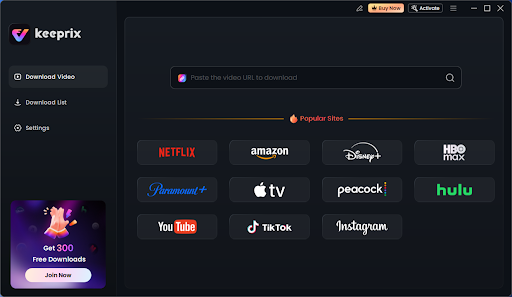
Keeprix is an all-in-one video downloader that supports downloading content from Netflix, Amazon Prime, Disney+, and more than 1000 streaming websites. With this tool, you can easily bypass the download limits and DRM protection on target platforms, thus downloading videos to MP4 or MKV format directly.
Step-by-Step Guide:
Step 1. Download and install Keeprix on your Windows or Mac computer.
Step 2. Launch the software and paste the video link directly.
Step 3. Keeprix will start analyzing the video and go to its profile page.
Step 4. Click the download button to save it directly from any website.
Please note that if the platform is account-based, you should first log in to your account and access the video.
| Pros | Cons |
|
|
Method 2. Use a Browser Extension
If you don’t have enough storage to install a desktop program, a browser extension is a lightweight alternative. These live in your browser toolbar and light up when they detect video content on a webpage.
Recommended Tool: Video DownloadHelper (Firefox/Chrome/Edge).
Warning: Due to Google’s store policies, many Chrome extensions are blocked from downloading YouTube videos. For YouTube specifically, use Method 1 or 3. For other sites (Vimeo, Facebook, News sites), extensions can work.
Step-by-Step Guide:
Step 1. Visit the Chrome Web Store or Firefox Add-ons store and search for “Video DownloadHelper”. Click “Add to Browser”.
Step 2. Navigate to the webpage containing the video. You must press play on the video for the extension to detect it. The extension icon will turn from grayscale to colored.
Step 3. Click the extension icon. You will see a list of detected video resolutions.
Step 4. Click the arrow next to your desired quality.
Note: For complex streaming protocols (HLS), the extension might ask you to install a “Companion App” to help merge the audio and video chunks. You should pay attention to the safety of the app before installing.
Step 5. The browser will download the file to your default Downloads folder.
| Pros | Cons |
|
|
Method 3. Use yt-dlp [Technical Skills Required]
This is the nuclear option. yt-dlp is a command-line tool that is the industry standard for video downloading. It is open-source, free, ad-free, and is updated constantly by the community to bypass new restrictions. It supports thousands of sites, not just YouTube.
Prerequisites:
- A computer (Windows, Mac, or Linux).
- Basic comfort with the Command Prompt or Terminal.
Step 1: Install yt-dlp
- Windows:
- Open PowerShell or Command Prompt.
- Run the following command to install via Winget (Windows Package Manager): winget install yt-dlp
- Alternatively, download the yt-dlp.exe binary from the official GitHub releases page and place it in a folder. Add that folder to your System PATH.
- Mac:
- Open Terminal.
- Install Homebrew if you haven’t (visit brew.sh).
- Run: brew install yt-dlp
Step 2: Install FFmpeg (Crucial)
yt-dlp needs a helper program called FFmpeg to merge separate video and audio tracks.
- Windows: winget install Gyan.FFmpeg
- Mac: brew install ffmpeg
Step 3: How to Download
- Open Terminal/Command Prompt.
Basic Command: To download a video in the best quality, simply type yt-dlp followed by a space and the URL.
Bash
yt-dlp https://www.website.com/video-url
- Specify Format (MP4):
By default, it might download .webm or .mkv. To force an MP4 container, use:
Bash
yt-dlp -f “bestvideo[ext=mp4]+bestaudio[ext=m4a]/best[ext=mp4]/best” –merge-output-format mp4 https://www.website.com/video-url
- Explanation: This tells the tool to find the best video track that is MP4 and the best audio track that is M4A, download them, and merge them into an MP4 file.
Step 4: Advanced Tricks
- Download a Playlist: Just paste the playlist URL instead of a video URL.
- Download Audio Only: Use yt-dlp -x –audio-format mp3 URL.
- Bypass Geo-Restrictions: Use yt-dlp –geo-bypass URL.
| Pros | Cons |
|
|
FAQs About Video Download from Any Website
1. Does Chrome have a video downloader?
Chrome itself does not have a built-in video download button for web content due to copyright liabilities. However, the Chrome Web Store hosts many third-party extensions. Be aware that Google blocks these extensions from working on YouTube specifically.
2. How to download an MP4 video?
You can simply paste the video URL to Keeprix Downloader, then click the download button to save an MP4 video on your computer.
3. How do I download directly from a website?
By using a powerful video downloader like Keeprix and yt-dlp, you can download videos directly from a website. Please note that yt-dlp is more recommended for skilled users with technical experience.
Conclusion
Downloading videos from any website in 2026 requires navigating a landscape of changing protocols and copyright restrictions. While the days of a simple “right-click save” are mostly gone, the tools available today are more powerful than ever.
For the average user, desktop software like Keeprix Downloader offers the smoothest experience. For those needing quick, on-the-fly grabs from news sites, using a browser extension can be the choice. Finally, for those willing to learn a few lines of code, yt-dlp grants you the superpower to archive almost anything on the internet for free. Remember to use these tools for personal archiving, fair use, or educational purposes only. Now that you are equipped with the right knowledge, you can start building your offline library today.