



You tap a profile picture on TikTok. It opens full-screen for maybe half a second. Then you’re scrambling — screenshot it now, before it closes. Crop the status bar out. Crop out that little play button icon sitting in the corner. And what’s left? A small, slightly blurry square that looked way better on your actual phone screen two seconds ago.
Sound familiar? That’s the exact frustration a tiktok profile picture downloader exists to fix.
There’s nothing hidden here, no secret TikTok’s trying to keep from you. It’s just a different route to the same image — one that skips the screen capture entirely and pulls the picture directly. No interface clutter. No quality loss from photographing your own screen.
So what actually separates a dedicated downloader from a screenshot? How does the process work, and what should you realistically expect either way? That’s what this comes down to.
Why Use a Dedicated PFP Downloader?
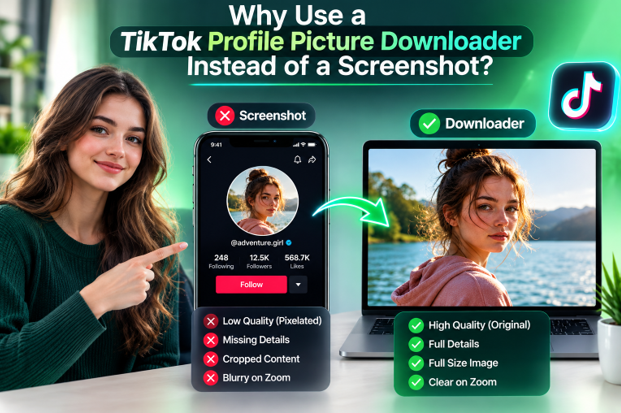
A screenshot captures whatever’s rendered on your display at that exact moment — your screen’s resolution, whatever compression your phone applies to saved images, your status bar, TikTok’s UI icons, the black background behind the profile viewer. All of it gets baked in. None of that clutter is actually part of the profile image. It’s a photo of a photo, more or less, and every layer between the real file and your saved screenshot costs you a little clarity.
A tiktok pfp downloader skips all of that. Instead of capturing what’s on screen, it goes and retrieves the profile image itself — the file TikTok is actually displaying, before your screen renders it and before your phone re-compresses it into a screenshot. What you end up with is cleaner. No status bar to crop out. No stray UI icon sitting in the corner.
There’s a convenience angle too, and it’s easy to overlook. Say you’re collecting reference images for something legitimate — a moodboard, a fan graphic made with the creator’s permission, or just archiving your own account’s history. Doing that one profile at a time via screenshot gets old fast. A downloader that takes a username and hands back the image directly cuts out the zooming, the cropping, the second attempt because your first crop caught part of the play icon.
None of this makes screenshots pointless, to be clear. For a quick, one-off save where quality barely matters, a screenshot is still the faster option. The gap only really shows up once you care how the final image looks, or once you’re doing this often enough that the extra steps genuinely add up.
How the TikTok PFP Downloader Works
Most tools follow the same basic logic, even if the interface looks a little different from one to the next.
- Find the profile. Locate the account whose picture you want, either by searching inside the app or by already having the username handy.
- Copy the profile link or username. Depending on the tool, you’ll either grab the full profile URL from TikTok’s share menu, or just type the @username in directly.
- Enter it into the downloader. Paste it into the tool’s input field.
- Let the tool retrieve the image. It pulls whatever profile picture is currently attached to that account.
- Preview and save. Most tools show you the image first, so you can double-check it’s the right person before it lands on your device.
Nothing especially technical is happening here. It’s not a workaround for some locked-down system — it’s a straightforward retrieval, fetching data TikTok already makes public to anyone who views that profile.
How to Download TikTok Profile Picture in Full Size
“Full size” gets thrown around loosely, so it’s worth being precise. What it actually means here is the image as TikTok stores it, minus the extra compression a screenshot piles on top.
Inside the app, profile pictures show up pretty small in most views — the thumbnail on someone’s page is noticeably smaller than what you get after tapping to expand it. That expanded view helps, but a screenshot at that point is still capturing your device’s screen resolution and re-encoding it into a brand-new image file, which adds its own quality loss on top of whatever TikTok already applied.
A downloader skips that extra step and pulls the image TikTok is actually serving. That’s a genuine improvement over a screenshot. But it’s worth being upfront about the ceiling too — no downloader magically produces a higher resolution than what TikTok has on file. If someone uploaded a small, slightly blurry photo as their profile picture in 2019 and never changed it, that’s still the version sitting on TikTok’s servers. A downloader retrieves it cleanly. It doesn’t invent detail that was never there.
TikTok Profile Downloader — Step by Step
Mobile’s fast. Under a minute, start to finish. Open TikTok, find the profile, tap Share, copy the link. Jump to your browser. Open a TikTok profile picture downloader, drop the link in. Preview shows up, you tap download, done — it lands wherever your phone saves things, Photos app or Downloads folder, whatever you’ve got set up.
Desktop’s the same routine, basically, just with a mouse instead of a thumb. Already have TikTok open in a browser tab? Grab the URL from the address bar, paste it, save. It’s a touch faster since there’s no bouncing between apps — but if you’re only doing this occasionally, mobile’s just as good.
Link, tool, preview, save. That’s really it. No account, no software beyond a browser you’ve probably already got open.
A Note on Respectful Use
A profile picture belongs to whoever uploaded it. Doesn’t matter that it’s sitting there in plain sight for anyone to see — it’s still theirs. Saving it for personal reference, archiving your own account, that kind of thing is fine. Reposting someone else’s image, impersonating them, using their photo somewhere they never agreed to — that’s a different situation entirely. If you’re planning to use an image for anything beyond casual personal reference, just ask the account owner. Most people are reasonable about it when you actually check in first.
Final Thoughts
A screenshot is fine for a quick, casual save — nobody’s saying otherwise. But once you care about how the final image actually looks, no cropped edges, no interface clutter, no extra compression from photographing your own screen, a dedicated tool just does the job cleaner. Tools built for exactly this work the same way: paste a profile link, preview the image, save it in the cleanest form available.
FAQ
Can I download a TikTok profile picture without taking a screenshot?
Yes. A dedicated downloader pulls the image file directly instead of capturing whatever’s on your screen — that’s the whole difference between the two methods.
How can I download a TikTok profile picture in full size?
Use a downloader that retrieves the image TikTok is actually serving, rather than screenshotting the profile viewer. That skips the extra compression a screen capture adds on top of TikTok’s own processing.
What is the difference between a TikTok PFP downloader and a screenshot?
A screenshot captures your screen — app interface, device compression, all of it. A downloader goes straight for the underlying image file and skips that extra layer entirely.
Can I view a TikTok profile picture before downloading it?
Usually, yes. Most tools show a preview first, so you can confirm you’ve got the right profile before anything actually saves.
Can I use a TikTok profile picture downloader on mobile?
Yep — same process as desktop. Copy the profile link from the app, paste it into the downloader in your browser, save the result.
Is it okay to download someone else’s TikTok profile picture?
For personal reference or casual use, sure. Reposting or redistributing someone’s image without them knowing is a different story — when you’re not sure, just ask.